
Dynamic Datasets
Datasets can be used to supply dynamic or unique values to your Protocol Bot scripts,
Browser Bot scripts, and Playwright scripts, so your load
test can submit different data to the server for each bot or iteration. The ${var} syntax described on this page
applies to Protocol Bot and Browser Bot scripts. Playwright scripts access dataset variables using the
@loadster/bot module instead.
For example:
- Logging in with a different username and password each time.
- Submitting a registration form with unique personal data for each user.
- Searching for any of 100 search phrases at random.
For most web applications, testing with dynamic data is important. It’s more realistic and it may force the application and database to work harder than if you submit the same data over and over.
A dataset is essentially a table of canned values that you prepare ahead of time. Your script references the dataset through a variable, and as the test runs, each bot pulls values from the dataset and substitutes them into requests, form fields, and so on. You decide how often a new value is pulled (per bot, per iteration, or per occurrence) and whether values are pulled in order or at random.
One thing that surprises people: a dataset doesn’t keep a single, global pointer that’s shared by every bot in your test. Instead, each bot group works through its own copy of the dataset. This matters when you need values to be unique, so it’s worth understanding before you build a large test — see Datasets and Bot Groups below.
Creating and Editing Datasets
Datasets live in your project’s Datasets tab. When you create one with the New Dataset button, you can name it and optionally paste values right into the Create Dataset dialog: CSV data, cells copied from a spreadsheet, or one value per line.
Editing datasets in Loadster is like using a spreadsheet. Each row signifies a separate entry in the dataset, and you can use multiple columns to supply multiple fields related to the same row.

For example, if you are providing user data where each user has a corresponding first name, last name, and email address, you can store these as columns to make certain they do not get mixed up with one another.
Importing CSV data into a dataset
To save time, you can import data from a CSV or TSV file with the Import CSV button in the dataset editor. Pasting works too: copy cells from a spreadsheet and paste them straight into the dataset grid.
Using Datasets in Scripts
Datasets must be mapped to script variables before you can use them in your scripts. To map a variable, click Dataset Variables at the top of your script editor.

Even though we treat them as variables, they are actually more like cursors in a database, because they can possibly return a different value each time you invoke them.
The Dataset Variables panel lets you give each variable a name, choose which dataset it pulls from, and configure how often new values should be selected from the dataset. If your project doesn’t have any datasets yet, you can create one right there without leaving the script editor.
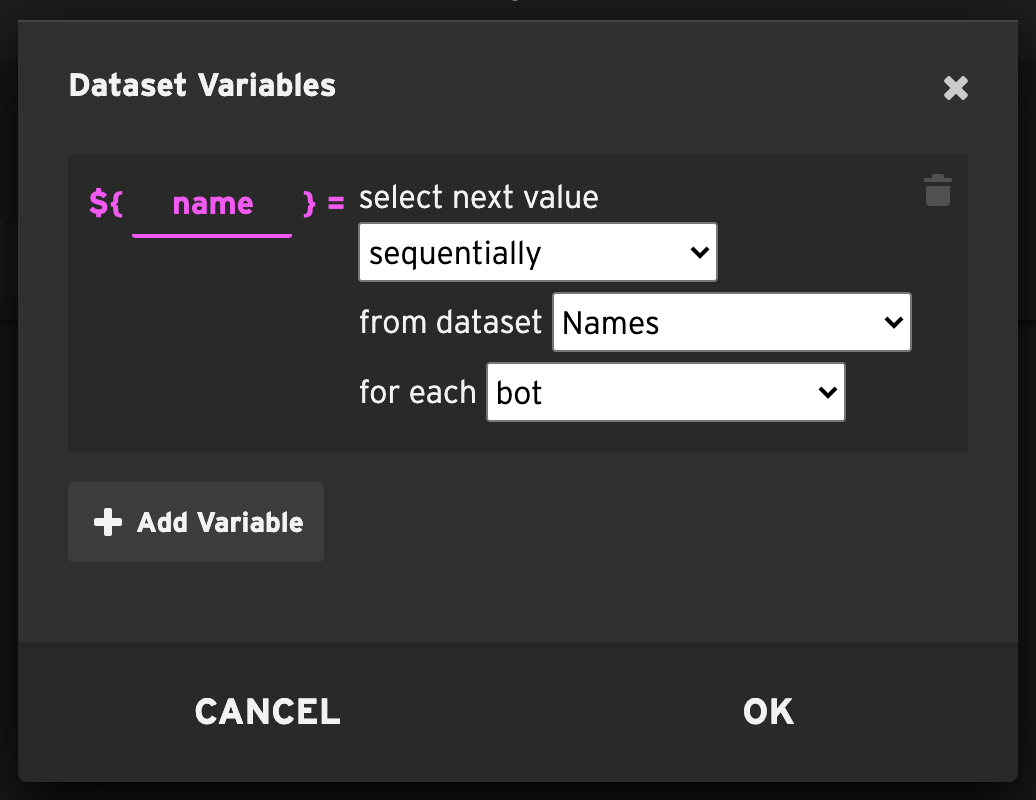
Whatever variable name you enter here will be available in your script with the ${} notation.
For example, if you entered a name of user, you can use it in your script as ${user}.
If your dataset has multiple columns, an entire row will be selected each time, and the variable will be
an array. For example, in a two-column dataset containing usernames and passwords, the username would be in
${user[0]}, and the password in ${user[1]}.
Dataset variable selection order
When you reference a dataset variable in your script, the variable is assigned a value from the underlying dataset. You can specify whether to pull new rows from the dataset sequentially or randomly.
-
sequentially - The rows in the dataset are read in order, starting from the beginning. If the end of the dataset is reached, it starts over.
-
randomly - The rows in the dataset are read at random.
Dataset variable selection frequency
You can also control how often a new row is pulled from the dataset.
- for each bot - Each bot assigns a value to the variable when it’s first encountered, and it keeps that value for the duration of the test, even if the bot runs multiple iterations.
- for each iteration - Each bot assigns a value to the variable when it’s first encountered, and it retains that value for the rest of the iteration, but a new value is assigned in each subsequent iteration.
- for each occurrence - Every time the variable is referenced in a script, a new value is pulled from the dataset.
Playwright scripts resolve their dataset variables when the script starts, rather than at each use, so the for each occurrence option only applies to Protocol Bot and Browser Bot scripts.
Each dataset variable has its own cursor
Every dataset variable keeps its own position in the dataset. Two variables that pull from the same dataset don’t share a position — each one advances on its own, according to its own selection order and frequency.
That’s what lets you work through several whole rows in a single iteration. Bind one variable per column, set them all to for each occurrence, and reference each one exactly once per row. Their cursors then advance in lockstep, so every row arrives whole.
The flip side is worth knowing too. If you bind a single for each occurrence variable and reference
it more than once (say ${User[0]} and ${User[1]} in the same request), each reference pulls a new
row, so the username comes from one row and the password from the next. Loadster doesn’t treat that as
an error and the script still plays fine, so it’s easy to miss. When you want one row to last the whole
iteration, use for each iteration instead.
Dataset variables when playing a script in the editor
Playing a script in the editor runs a single bot through a single iteration. So a variable set to for each iteration or for each bot pulls a row the first time it’s referenced and keeps that value for the rest of the play — you’ll see the same row everywhere the variable appears. That’s the binding working correctly, not a broken one.
If you want a variable to move through several rows during one play, set it to for each occurrence. Otherwise, different rows only show up in a load test, where each bot runs many iterations.
Using a dataset variable in your script
Once you have bound a dataset variable, you can reference it in the script with the following variable notation:
${Email}${ProductID}${FirstName}
If your dataset has multiple columns, you can specify which column to use with this zero-based array notation:
${User[0]}${User[1]}${User[2]}
You can leave off the [0] to signify the first column. In other words, the following are identical:
${User}${User[0]}
Where to use variables
Whenever Loadster comes across your variable, it substitutes the value from the dataset. You can use variables almost anywhere in a step.
To learn more about variable syntax and advanced expressions, check out Variables and Expressions.
Datasets and Bot Groups
When you run a load test, each bot group runs as an independent cluster. The cluster manager for a group downloads its own copy of any dataset the group’s script references, and keeps track of each bot’s position in that copy as the test runs. Nothing about a dataset’s position is shared between groups.
This has an important consequence: dataset values are unique per bot within a bot group, but they are not globally unique across multiple bot groups. If two groups run a script that pulls from the same dataset, each group works through its own private copy, so a bot in group one and a bot in group two can end up using the same row at the same moment.
For example, imagine a dataset of unique email addresses, and a scenario with two groups running the same login script,
each configured to pull a new email sequentially for each bot. Group one might hand qa+user1@example.com to its
first bot, and group two will independently hand the same qa+user1@example.com to its first bot, because neither
group has any idea what the other is doing.
This is a deliberate trade-off. Coordinating a single shared cursor across every bot, engine, and region would create a central bottleneck that every bot has to wait on. Giving each group its own copy is what lets datasets scale cleanly to large tests spread across many engines and cloud regions.
Keeping values unique across groups
If your test genuinely needs every bot to use a unique value, no matter how many groups are running, you have a couple of options:
-
Run all the bots in a single group. Within one group, when you select values sequentially for each bot, the cluster manager hands each row to only one bot at a time (until it reaches the end of the dataset and wraps around), so values stay unique.
-
Bind a different dataset to each group. You can keep using a single script and override its variables per bot group in the scenario editor, pointing each group at a different dataset so their values don’t overlap.
In either case, in most cases you’ll want your dataset to have at least as many rows as you have bots. Once a bot group reaches the end of a dataset, it starts over from the beginning, and values will repeat. (Sometimes that’s exactly what you want (for example, a handful of values that bots cycle through repeatedly), but if you’re after unique values, size the dataset accordingly.)
Other Ways To Set Script Variables
Variables are not only populated from datasets. You can also set variables yourself during script runtime, by capturing output from the site or application you are testing.
In a Protocol Bot script, you can do this with Capturing Rules.
You can also set a variable yourself in a Code Block with bot.setVariable('myVar', 'value').